

How to Embed a Lead Capture Form in an Icegram Engage Message
Embed opt-in subscription forms, HTML forms, or third-party shortcodes inside Icegram Engage popups and floating bars.
Embedding forms inside popups, overlays, or sliding drawers allows you to capture visitor email addresses, contact details, and feedback without navigating away from the page.
Steps to Embed a Form
-
In your WordPress dashboard, go to
Icegram Engage→Campaignsand edit your message. -
In the message configuration panel, locate the Form section.
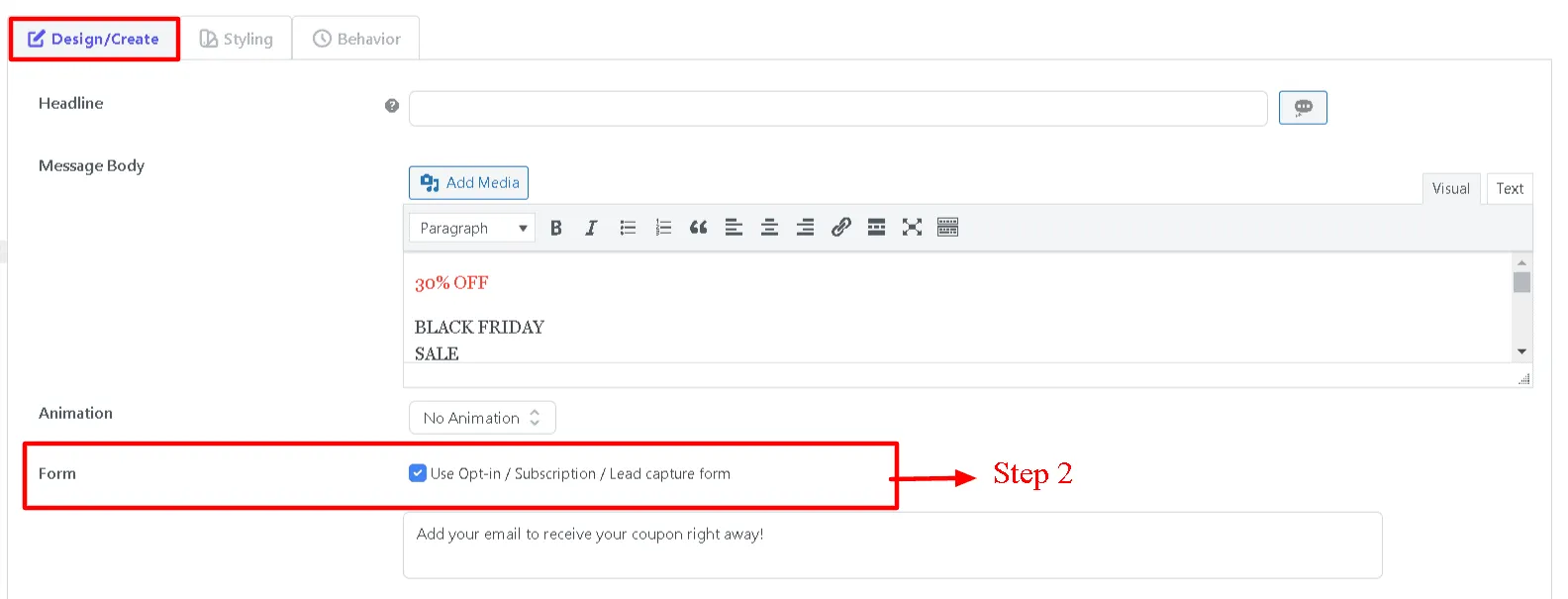
-
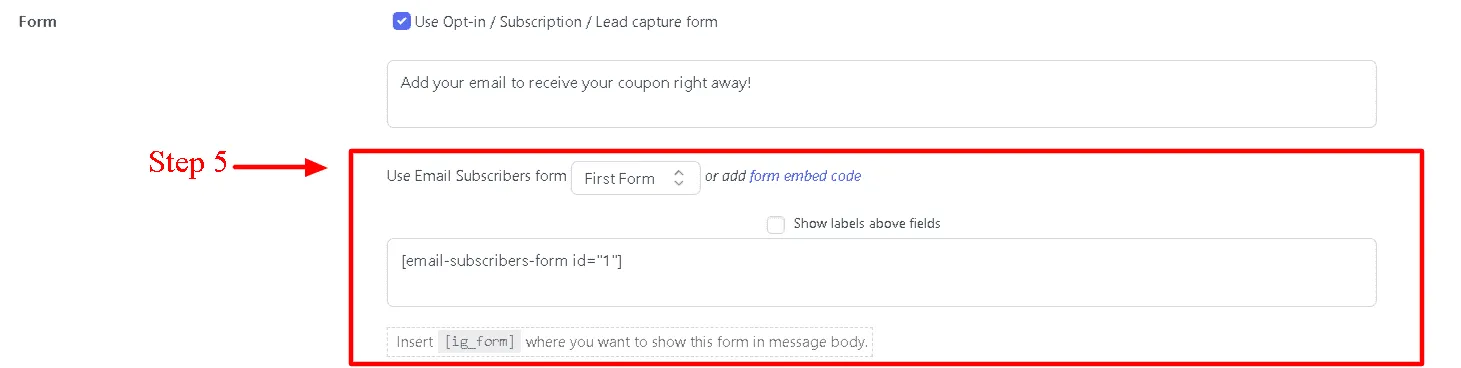
Choose your Form Type from the dropdown:
- Icegram Express: Select an existing Icegram Express newsletter list form.
- Icegram Collect: Select a pre-built Icegram Collect form.
- HTML / Other: Paste custom HTML form code or shortcodes from form plugins (Gravity Forms, WPForms, Ninja Forms).
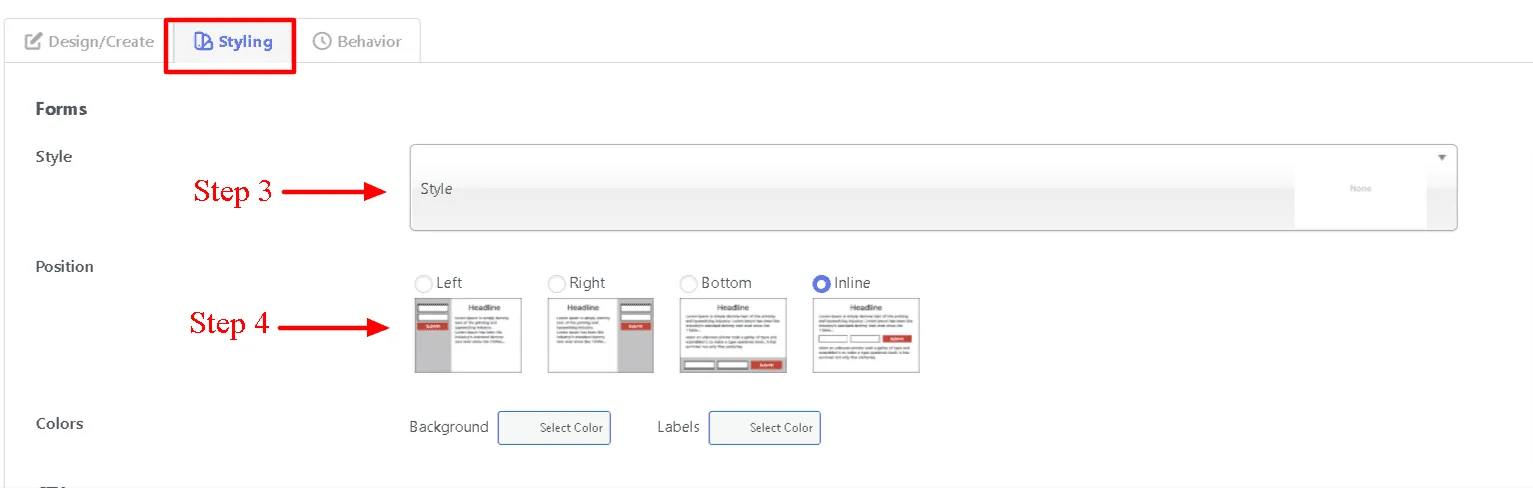
-
Configure form field display and styling options (such as inline layout or stacked fields).
-
Save your campaign and test the form submission on your live site.