

Common Email Sending Problems & Troubleshooting
Diagnose and resolve common email delivery issues, queue bottlenecks, server limits, and SMTP misconfigurations in Icegram Express.
If your broadcast newsletters or automated post notifications fail to send or get stuck in the queue, work through these diagnostic checks:
1. Verify Campaign Queue Status
- In your WordPress admin, navigate to Icegram Express > Reports.
- Locate your campaign and check the Status column.
- If the status is In Queue, emails are waiting for the next cron execution batch. You can click Send Now to trigger delivery immediately.
- If the status is Completed, emails were dispatched from your server. Check your inbox or spam folder.
2. Sender “From Email” Mismatch
Email providers reject emails if the “From” address domain differs from your actual web server or SMTP domain (e.g., using @gmail.com on a self-hosted WordPress site).
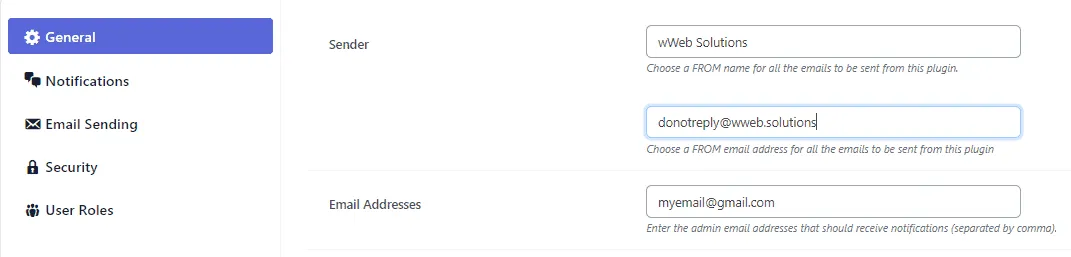
Ensure your From Email under Icegram Express > Settings > General matches your website domain (e.g., newsletter@yourdomain.com).
3. Scheduled Sending & WP-Cron Issues
In the free version, Icegram Express relies on WordPress internal WP-Cron to release queued emails. WP-Cron only runs when visitors browse your website.
- On low-traffic sites, scheduled emails will remain queued until someone visits.
- Some web hosts (such as GoDaddy or Bluehost) disable loopback HTTP requests, preventing WP-Cron from firing.
- Solution: Configure a server-level cron job in cPanel or upgrade to Icegram Express Pro or Max for automated cloud cron.
4. Web Host Hourly Sending Limits
Most shared hosting providers impose strict limits on outgoing emails (e.g., maximum 50–100 emails per hour) and throttle or silently drop excess messages.
- Check your host’s hourly email limits.
- Adjust Maximum emails to send in an hour under Settings > Email Sending.
- For lists larger than 500 subscribers, route emails through a dedicated cloud service like Amazon SES, SendGrid, or Postmark.
5. Send a Diagnostic Test Email
Use the built-in Test Email tool under Settings > Email Sending. If you see an error such as “Could not instantiate mail function”, your hosting server’s PHP mail() function is blocked or offline.